Remove objects with the AI brush in four steps
Works in a browser on a phone or a computer. You need a free account; nothing to install.
Upload the photo
Open Remove Object from Photo and upload a JPG, PNG, WEBP or HEIC up to 20 MB. Large photos are scaled to 2048 px on the long edge.
Brush over everything that should go
Paint the object, its shadow and a few pixels past its edge. Mark every object you want gone: a sign, two cones and a bin are still one run. Use the eraser to fix a stroke.
Run it once
Press Remove object. A run takes 30 to 60 seconds and costs 2 credits. If it fails, the credits go back to your balance.
Compare, touch up, download
Drag the handle to compare with your original. If a thin wire end or a faint shadow is left, brush just that spot and run again. Download without a watermark.
Free tools first, and when to switch
Requirements and prices as of October 2026, from Apple's and Google's help pages.
| Snapseed Healing | Google Photos Magic Eraser | iPhone Clean Up | Remove Object (this site) | |
|---|---|---|---|---|
| Cost | Free app | Free for all users since April 2024 | Free, built into Photos | 2 credits a run; 10 free credits at sign-up |
| Devices | Phone app | iPhone: iOS 18 or later and 3 GB RAM. Android: 8.0 or later and 3 GB RAM | iPhone 15 Pro, 15 Pro Max, iPhone 16 or later, iOS 18.1 or later. Not available in mainland China | Any browser |
| Best for | Small spots on a plain background | One object, tapped or circled | One object, tapped or brushed | Large objects, long wires, several objects in one run |
| Weak spot | Large objects and busy backgrounds | Needs a personal Google Account; school and work accounts are not supported | Only on supported devices and regions | Needs an account; no free runs without one |
Sources: [Google Photos help](https://support.google.com/photos/answer/6128850?co=GENIE.Platform%3DiOS) and [Apple's Apple Intelligence page](https://support.apple.com/en-us/121429). Snapseed is limited to its Healing tool today.
How to use the free tools
Google Photos on iPhone. Open the photo and tap Edit. Tap, circle or brush the object, use Refine selection if the outline is off, then tap Erase, Done and Save, or Save as copy to keep the original. Magic Eraser is also listed under the Actions tab. See Google's iPhone help.
Google Photos on Android. Tap Edit, search for Magic Eraser, then tap, circle or brush the object, tap Erase, Done and Save. See Google's Android help.
iPhone Clean Up. Clean Up is part of the editing tools in the Photos app on iPhones with Apple Intelligence. It is free, but only on supported models, and it is not available in mainland China. Apple's steps are in the iPhone User Guide.
Snapseed Healing. Use it for dust, a small sticker or a spot on a plain wall. It copies texture from nearby, so a large object or a busy background tends to come out smeared.
Switch to the AI brush when the object is large, when a wire runs across the whole sky, or when there are several things to remove. One stroke per object, one run for all of them.
What the AI brush removes, on real photos
Each pair is a real photo and the unedited result. Drag the handle to compare.
 BeforeAfter
An orange date stamp in the corner of a film photo. The grass is filled back in; the date covered less than 1% of the photo.  BeforeAfter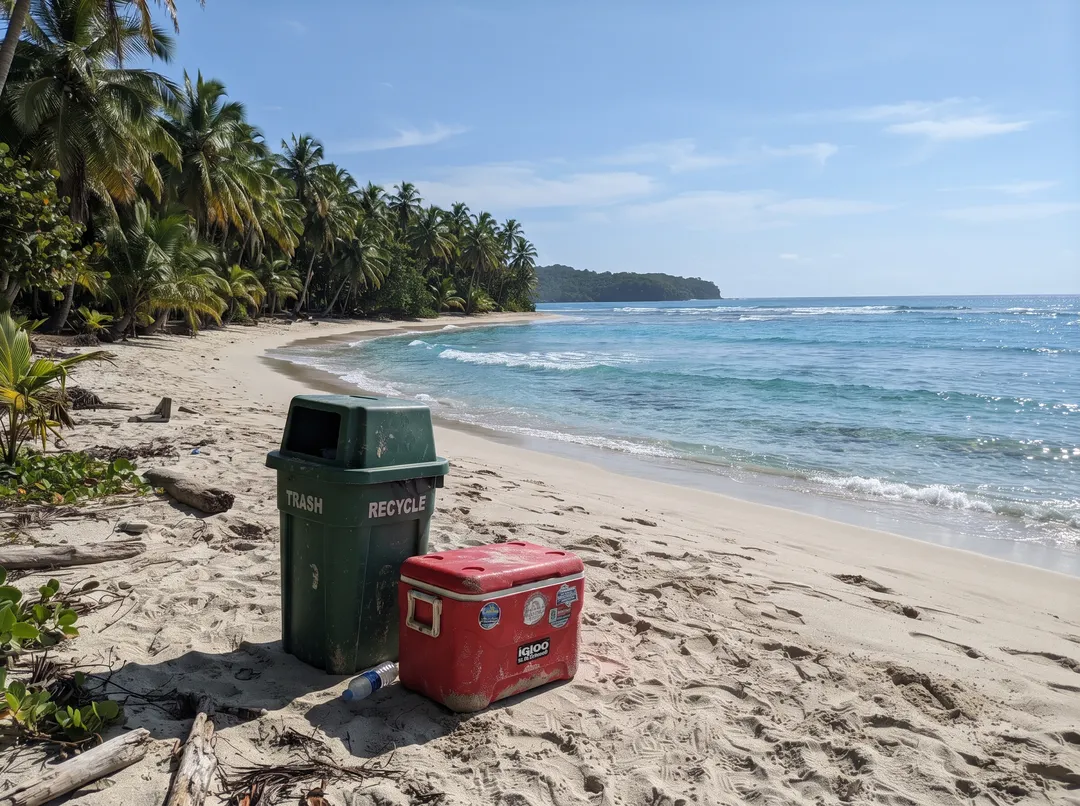
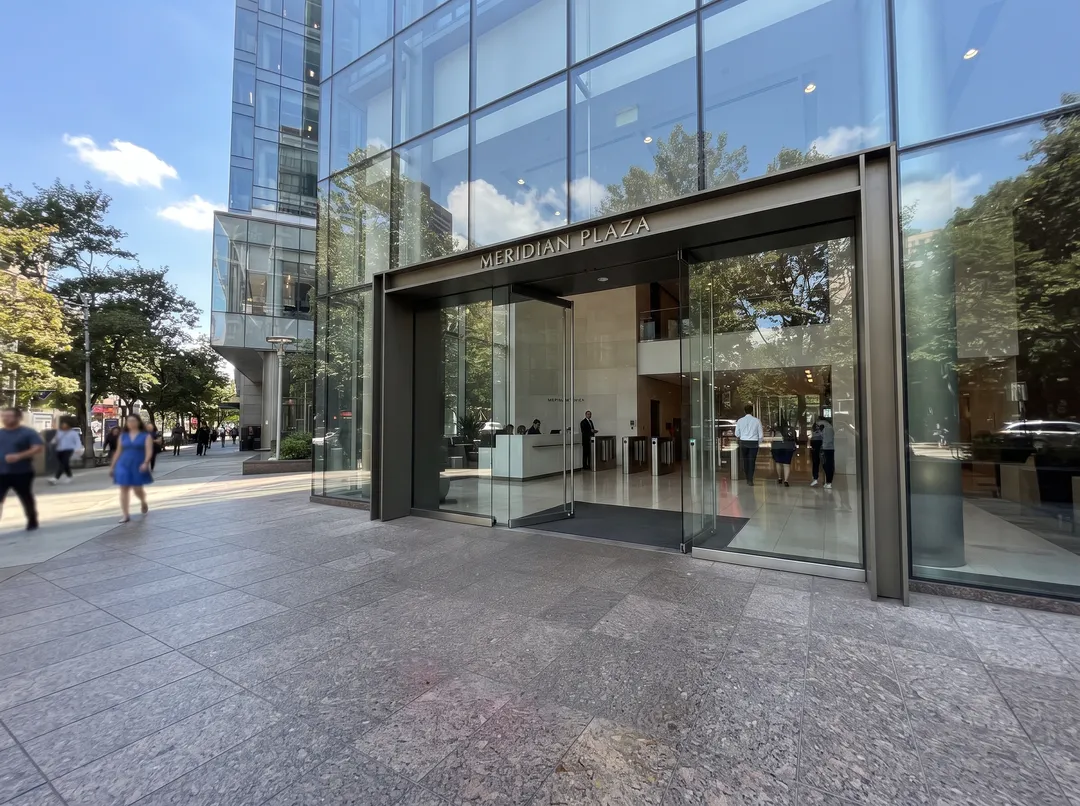
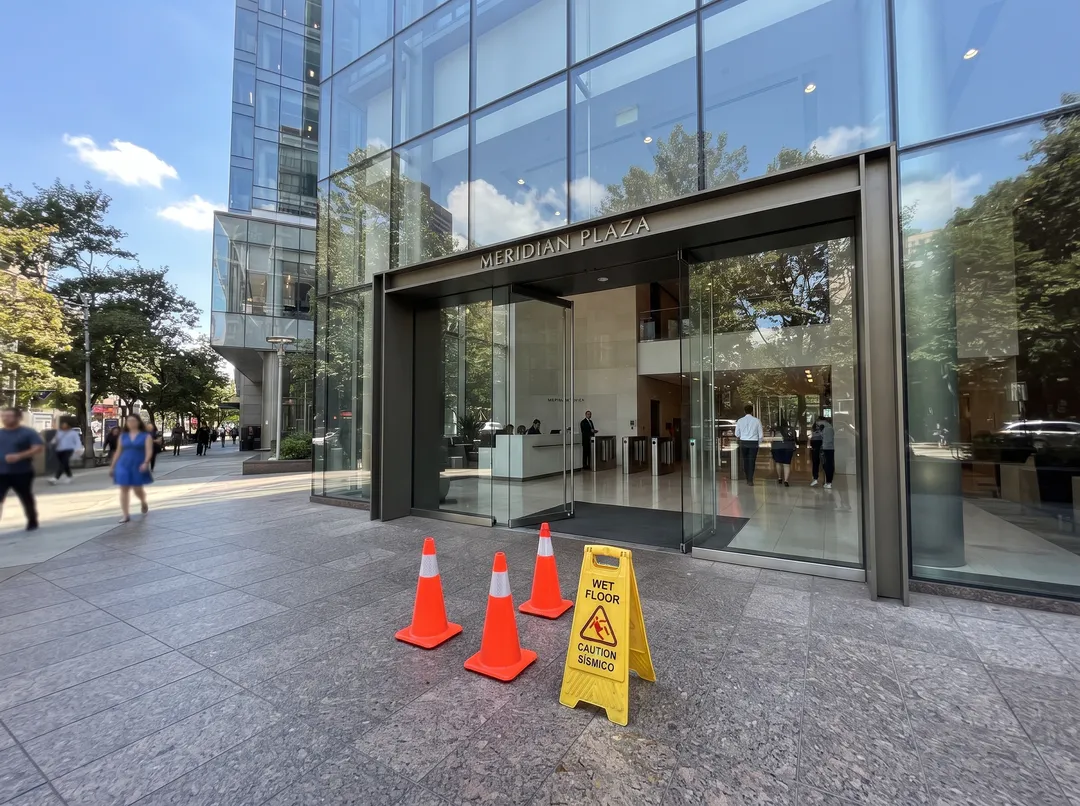
A trash bin and a cooler on a beach, brushed together with their shadow. Sand and driftwood fill the space.  BeforeAfter
A for-sale sign and its post in front of a cabin. The path and the grass continue where it stood.  BeforeAfter
A power pole and its wires in a lavender field. One stroke removed most of it; two small follow-up strokes on the result cleaned up the wire ends near the horizon.
Which objects come out clean, and which are hard
From the 25 test photos on the Remove Object page, October 2026.
| Object | Result | What to watch |
|---|---|---|
| Date stamps, stickers, small text | Removed, film grain kept | Tiny embossed text, like a logo pressed into leather, can survive the first run |
| Signs and graffiti | Removed; wall, grass or path continued | Paint the post and the shadow as well as the sign |
| Cones, bins, coolers, scooters | Removed in one run, several at once | A long shadow outside the brush stays behind |
| Clutter on a counter or floor | Removed; up to about a quarter of the photo in one run | Larger areas were not tested, and the fill has more to invent |
| Power lines and poles | The pole goes easily | Wires are the hard part. Follow every wire to the edge of the frame, or faint lines stay |
| People and photobombers | Removed, including their bag and shadow | Faces and signs near the brush are generated. For people, Remove People from Photo also finds them from a description |
Four brush habits that decide the result
Cover the shadow
The fill blends a little past your stroke, but not as far as a long shadow. Paint the dark patch on the ground too.
Paint loosely, a little past the edge
A tight outline can leave a thin halo. A stroke a few pixels wider than the object blends better.
Include every part
A pole has wires, a sign has a post, a turbine has three blades. Anything you miss stays floating in the photo.
Mark everything in one run
Several objects in one run cost 2 credits in total. Running once per object costs more and adds small changes each time.
What object removal cannot do
- The fill is a guess. What appears where the object stood was generated, not recovered. Check faces, signs and text near the brush before you print or publish.
- Texture next to the stroke can shift. Grass, sand or a shadow right beside the brush may be adjusted so the fill blends. Pixels further away keep their original values.
- Very large areas are untested. Our largest removal covered about 24% of the photo. Above a quarter, expect to brush and run again.
- Output is at most 2048 px on the long edge, the same size as your upload below that. For a large print, run the result through the Image Upscaler.
- Do not use it to change what a photo documents, and remove watermarks only from photos you own or have the rights to edit.
Questions about removing objects from photos
Yes. Google Photos Magic Eraser, iPhone Clean Up on supported models and Snapseed's Healing tool cost nothing. On this site, a free account gets 10 credits with no card, enough for 5 removals. After that, packs start at $9.99 for 100 credits that never expire.
Brush the pole and follow every wire all the way to the edge of the frame in the same stroke. Wire ends you skip stay as faint lines. If one is left, brush only that line and run again.
Yes. Paint every object, then run once for 2 credits. In the test photos one run removed up to four items, such as toys, a backpack and two pairs of shoes.
Yes. Paint over the digits and the area is filled back in with the grain of the rest of the scan. Scan the print at 600 dpi first for the cleanest result.
Pixels away from the brush keep their original values; the result is blended back into your upload. Right next to the stroke, texture may be adjusted so the fill blends, with a feathered edge.
No. Object removal needs a free account. The free runs without an account apply to the Background Remover, 2x upscaling and colorizing.
Last checked Oct 24, 2026 First published. Third-party steps and requirements checked against Apple's and Google's help pages, October 2026.