Remove Objects from Photos with AI
Brush over a person, sign, wire or pile of clutter, and the AI fills the area to match the rest of the photo. Everything away from your brush keeps its original pixels. Each removal takes 30–60 seconds.
- 10 free credits at sign-up
- 2 credits a photo
- No watermark
Paint over the object and its shadow. A loose stroke works better than a tight one.



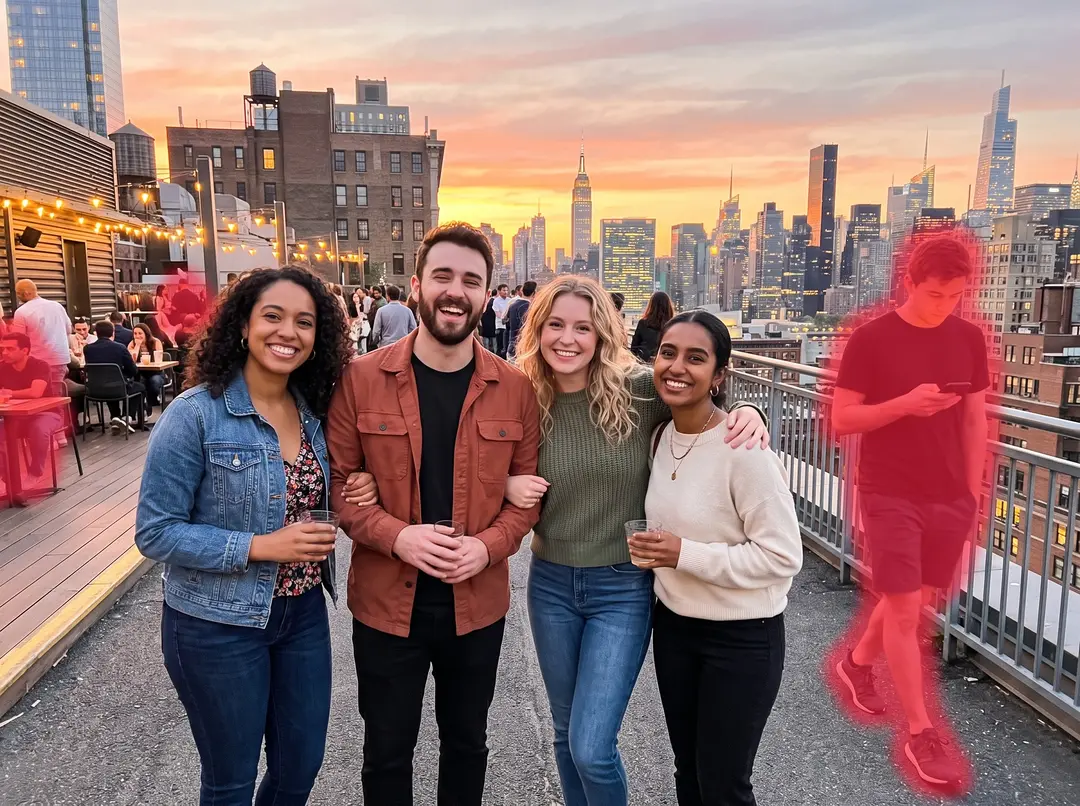



Brush over the guest
- Brush what goes
- Original pixels kept
- Several objects in one run
- Credits back if it fails
- Model: Nano Banana 2
See what it removes, photo by photo
25 real photos in 8 categories. Pick one to compare. Turn on the brush stroke to see exactly what was painted before the run.


Five things people remove from photos most
Each example is a real photo, the real brush stroke and the real result. Drag the handle to compare.
Remove tourists and photobombers from travel photos
At a viewpoint you wait for a gap in the crowd, and someone still walks into the frame. Brush over the person, their bag and the shadow on the ground, and the AI fills the space with what was most likely behind them: here the white wall, the railing and the Santorini houses. The woman in front is outside the brush, so her face, hair and dress are your original pixels.

Erase power lines, poles and wind turbines
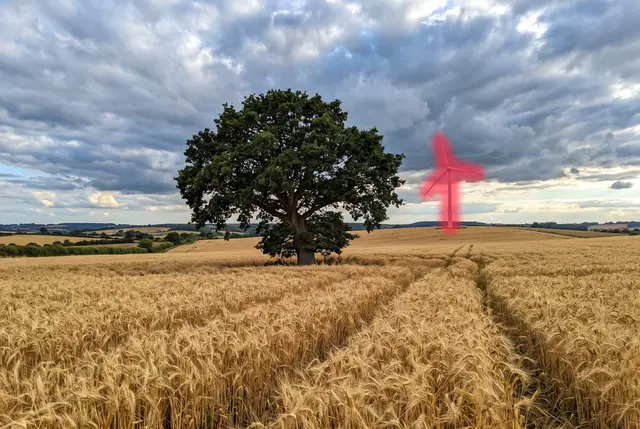
Wires are thin and long, which is why tools that detect objects automatically often miss them. With a brush you follow the wire to where it leaves the frame and cover the pole in the same stroke. The sky, the clouds and the sunset glow are filled in where the pole stood. Faint wire ends can survive the first run; brush them on the result and run again.



Clean up product shots without a reshoot
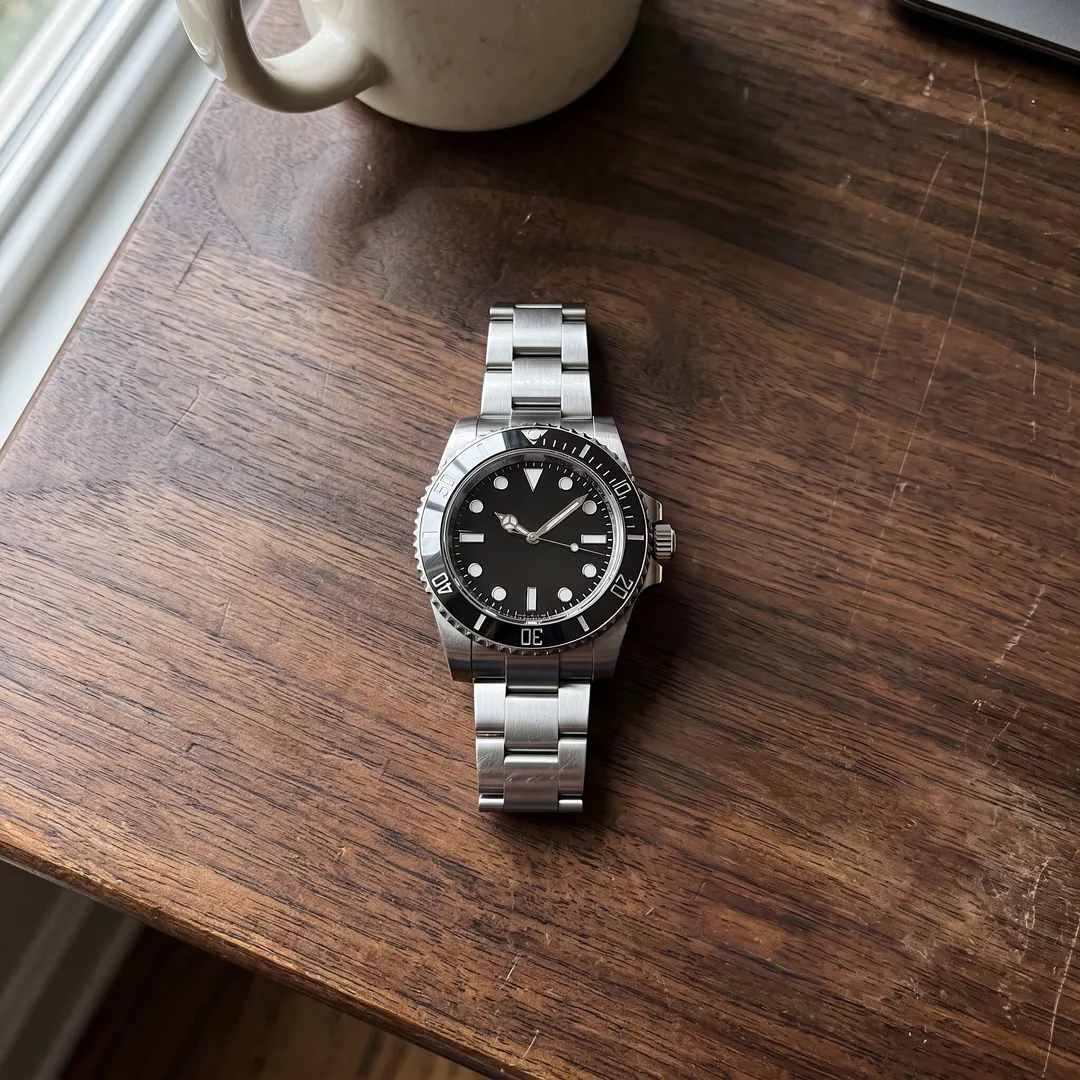
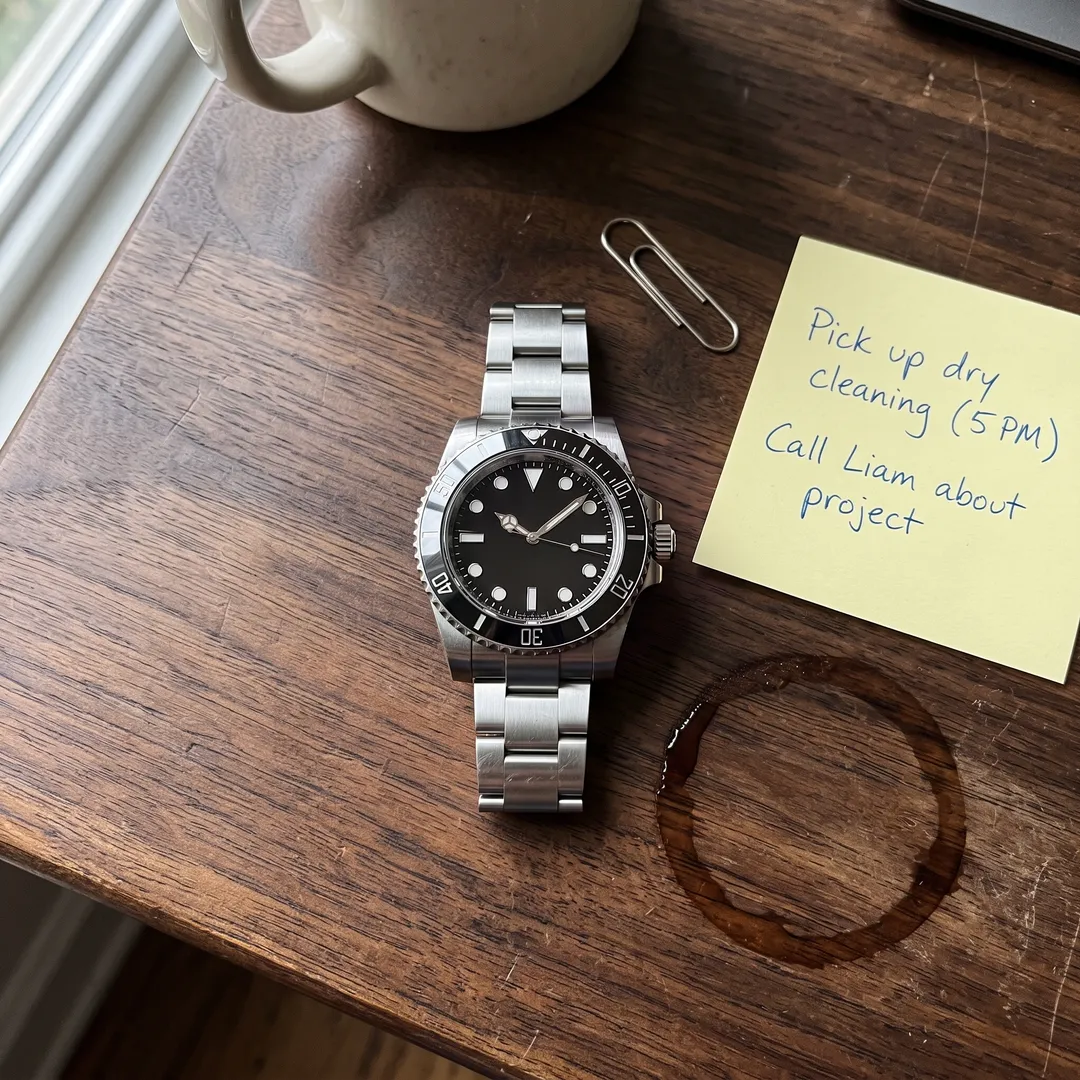
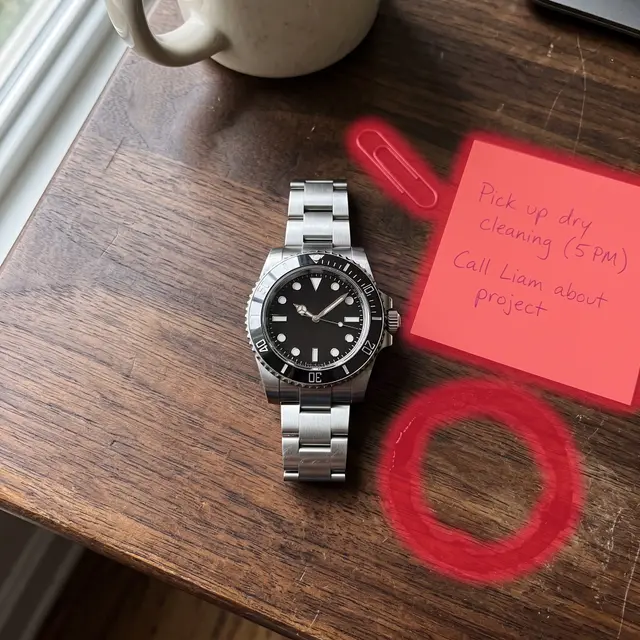
A sticky note, a paperclip and a coffee ring on the desk pull the eye away from the watch. Paint all three in one run and they are replaced with walnut grain that matches the direction and color of the wood around them. The watch is outside the brush, so the dial, hands and bracelet are exactly as photographed. That matters for marketplace listings, where buyers zoom in.
Declutter a room before you list or share it
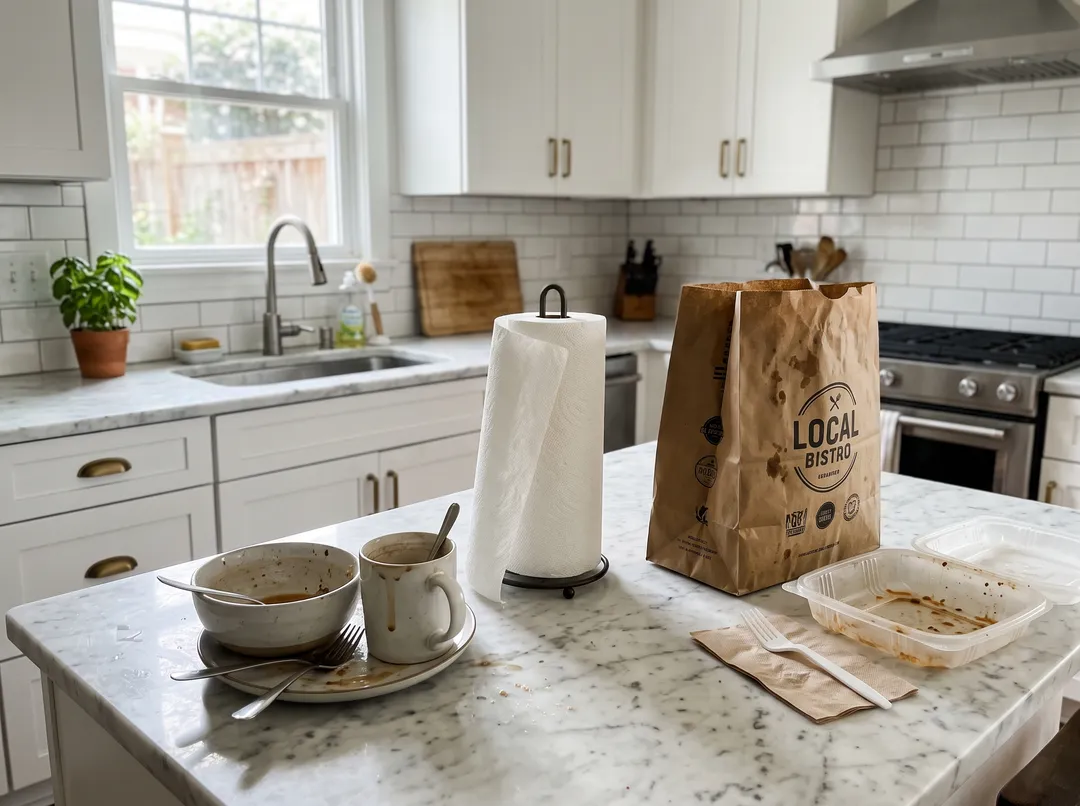
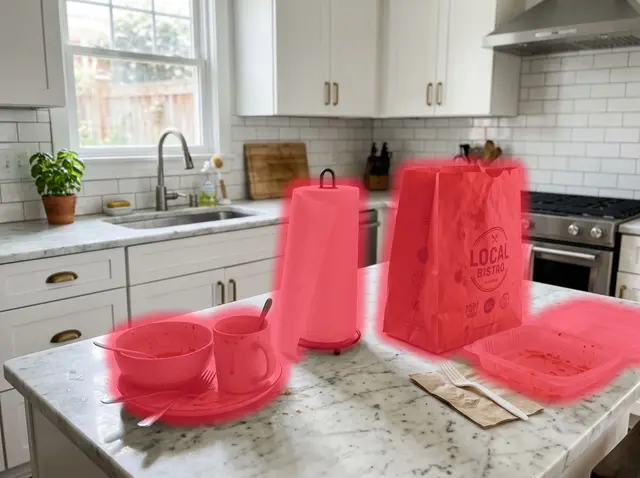
Dishes, paper towels and a takeout bag make a clean kitchen look messy. Paint the counter clutter and the marble is filled in with veining that continues the slab. This is the largest area in our tests, about a quarter of the photo, and still came out clean in one run. For real-estate listings, check your listing site’s rules on edited photos before you publish.

Remove date stamps, signs and graffiti
Scanned film photos often carry an orange date in the corner. Paint over the digits and the grass and shadow are filled back in, with the film grain of the rest of the scan. The same brush removes a for sale sign, a graffiti tag or a sticker. Remove watermarks only from photos you own or have the rights to edit.



How to paint for a clean removal
The brush decides the result more than anything else. These four habits came out of our 25 test photos. Hover a card to see the result.
 BrushResult1
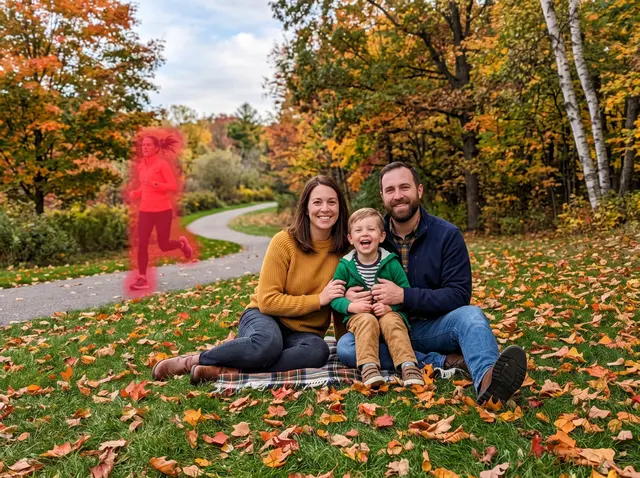
Cover the shadow too
Paint the object and the dark patch it casts on the ground.
Stopping at the outline leaves a ghost shadow behind.
 BrushResult2
Paint a little past the edge
A loose stroke, a few pixels wider than the object.
Tracing the exact outline can leave a thin halo.
 BrushResult3
Include every part
Tower, blades and anything attached to the object.
A missed blade tip stays floating in the sky.
 BrushResult4
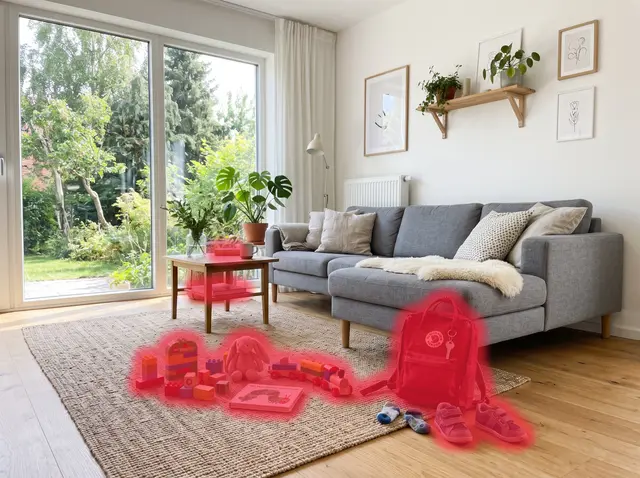
Mark everything in one run
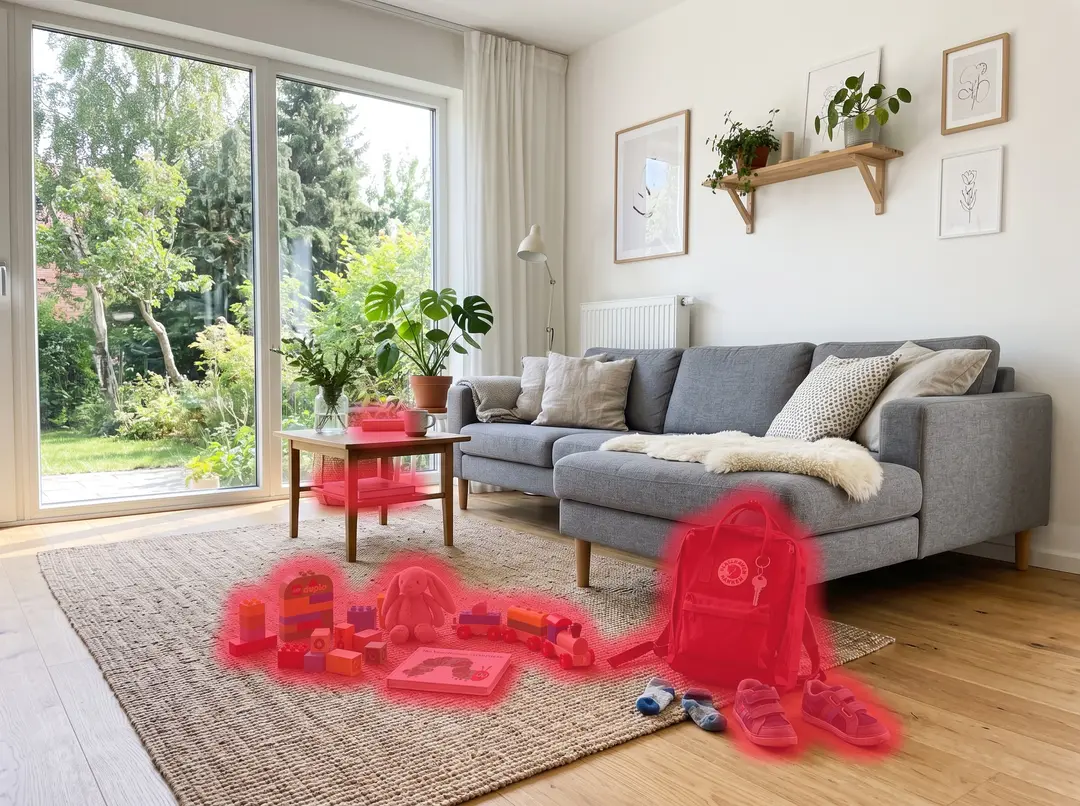
Toys, bag and shoes in one go, for 2 credits.
One run per object costs more and adds up small changes.
How to remove an object from a photo
Three steps in the browser, on a phone or a computer.
- 1
Upload a photo
Any photo from your phone or computer: JPG, PNG, WEBP or HEIC up to 20 MB. Large photos are scaled to 2048 px on the long edge.
- 2
Brush over what should go
Paint the object and its shadow. Mark several objects if you like; it is still one run. Use the eraser to fix a stroke, then press Remove. 2 credits are held while it runs.
- 3
Compare and download
Drag the handle to compare with your original. Download, brush a leftover spot and run again, or try the same stroke once more. Failed runs return the credits.
Who removes objects from photos, and why
Hover a card to see the original photo.
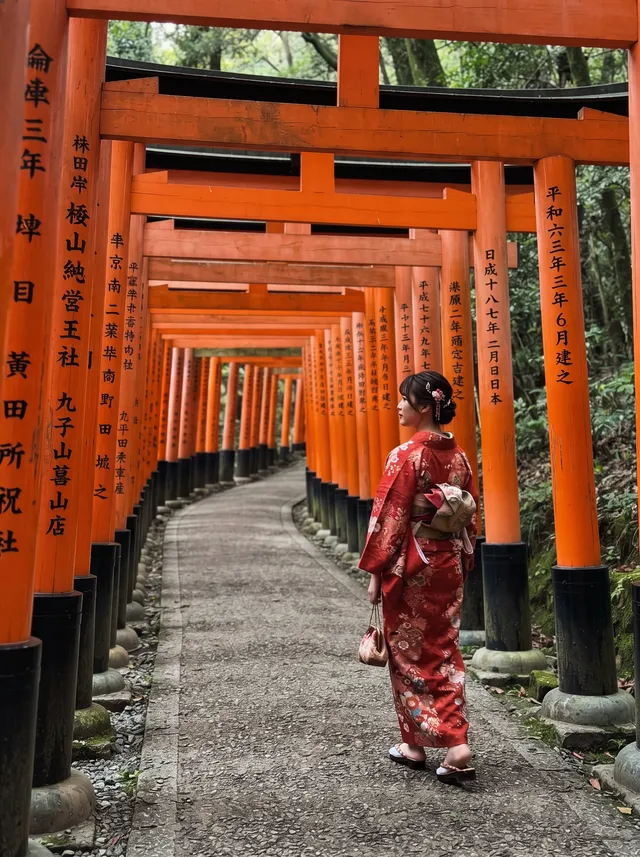
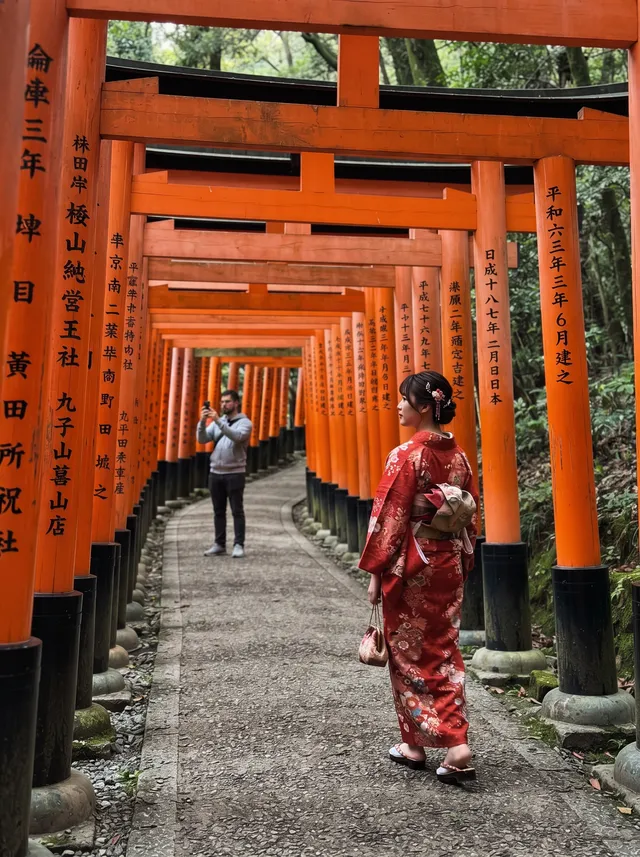 Original
Travel photos
Take the crowd out of the torii gates, the bridge or the beach, and keep the trip photo you actually wanted.

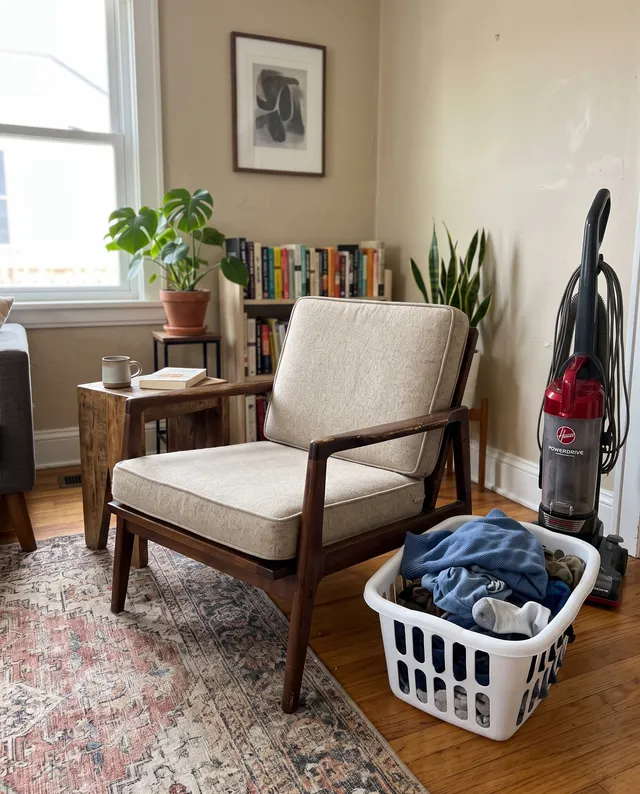 Original
Resale listings
Selling a chair or a pair of sneakers? Remove the laundry, cables and stickers so buyers see only the item.
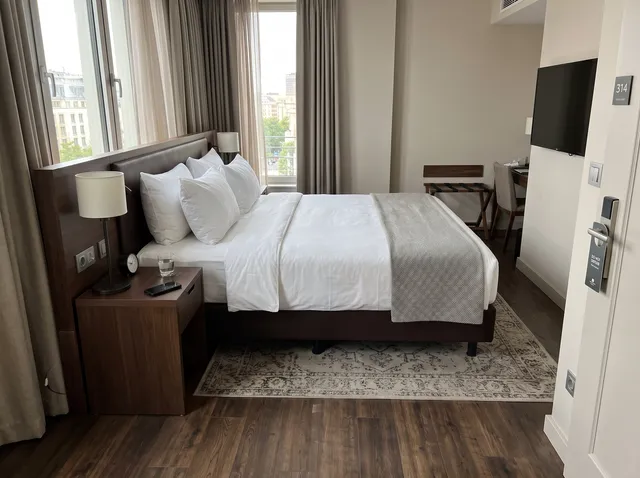
 Original
Rentals and real estate
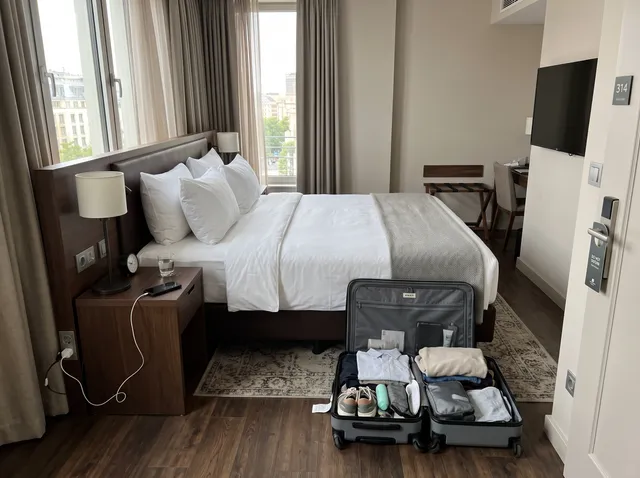
Clear the suitcase, cables and clutter from a room before it goes on a rental or listing site.

 Original
Parties and events
Cans, cups and napkins on the table, a phone held up at the concert: remove them from the shots you print.
 Original
Family and group photos
A jogger behind the family or a stranger next to your friends. Paint over them and keep everyone else as shot.

 Original
Street and architecture
A fallen scooter, traffic cones or a graffiti tag in front of a storefront. Remove them and keep the facade.
AI object remover vs the other ways to do it
Use the brush when you need a clean photo in a minute. Use Photoshop when you need layers and several variations to choose from.
| AI brush (this tool) | Clone stamp / healing brush | Generative Fill in Photoshop | Retake the photo | |
|---|---|---|---|---|
| Time per photo | 30–60 s | 5–30 min | 1–3 min | Minutes, if you can go back |
| Skill needed | Paint over it | Retouching practice | Photoshop basics | None |
| People and large objects | Yes, up to about ¼ of the photo in our tests | Hard; texture repeats | Yes | Yes |
| Pixels outside the area | Kept from your original | Kept | Kept | New photo |
| Works on a phone | Yes, in the browser | Some apps | Desktop or web app | Yes |
| Cost | 2 credits | Software + time | Subscription | Travel and time |
Our column comes from 25 test photos, Oct 2026. Other columns are typical ranges, not measurements.
What it does not do well yet
These came up in our own tests. We show them so you know what to check, and when to brush again.
The fill is a guess, not what was really there
Where the guest stood, the hedge, the chairs and the people in the back row were generated. They look right, but they are not the real wedding guests. Check faces, signs and text near the brush before you print or publish, and do not use removals to change what a photo documents.
Left: the brush · Right: the result
Shadows outside the brush stay
The fill blends a little past your stroke, but a long shadow it does not reach stays behind. Paint the shadow too.
Tiny embossed text can survive
A logo pressed into leather or printed very small can come back in the first run. Brush it again on its own.
Large areas are less reliable
Our largest removal covered about 24% of the photo. Above a quarter of the frame we have not tested, and the fill has more to invent.
Texture next to the brush can shift
The AI may adjust grass, sand or a shadow right beside the stroke so the fill blends in. That band is feathered, and pixels further away are your original.
Output size: the same as your upload, up to 2048 px on the long edge. For print, run the result through Image Upscaler.
Pay per result, keep your files
You choose what goes
Paint exactly what to remove. No prompt to write, and nothing outside your brush is picked for you.
The rest stays original
The result is blended back into your photo, so faces and text away from the brush keep their original pixels.
Credits back if it fails
If a removal fails, the 2 credits return to your balance automatically.
Packs never expire
100 credits for $9.99, about 50 removals, with no monthly plan.
No watermark
Results download without a watermark, at the size of your upload.
Photos deleted in 30 days
Uploads and results on free accounts are deleted after 30 days. We do not train on your photos.
Every example on this page was made with this tool
Photos were generated as everyday phone shots, brushed, then run through this exact object remover. No retouching. Hover to see the original.


Removed: three people in rain jackets
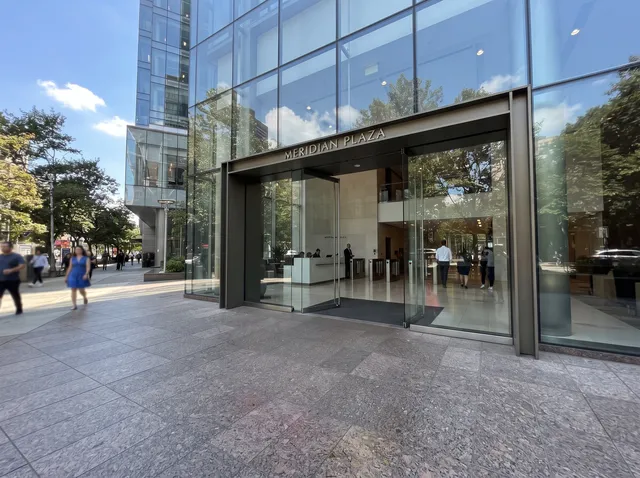
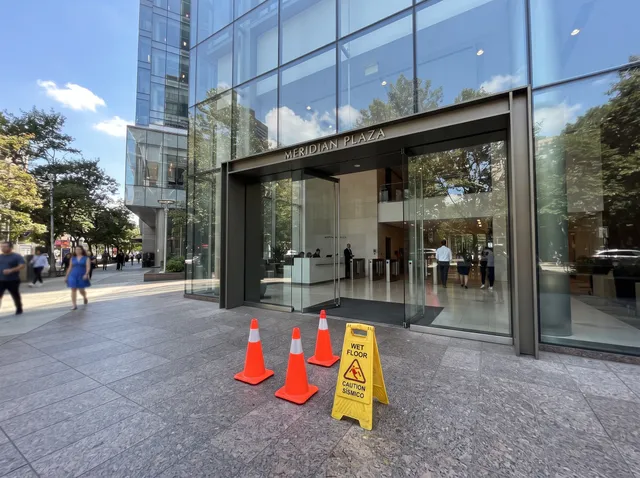
Removed: traffic cones and sign


Removed: graffiti


Removed: phone held up in the crowd
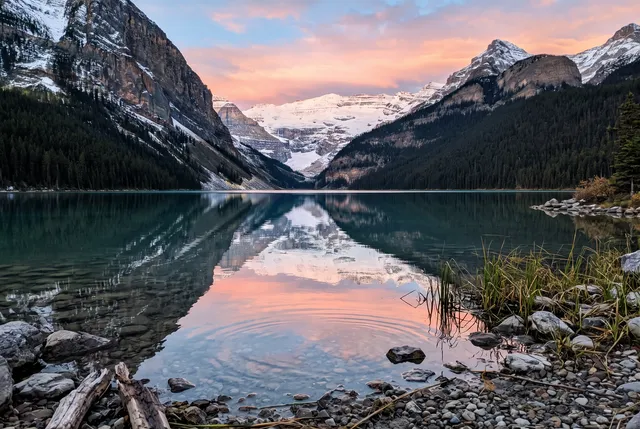
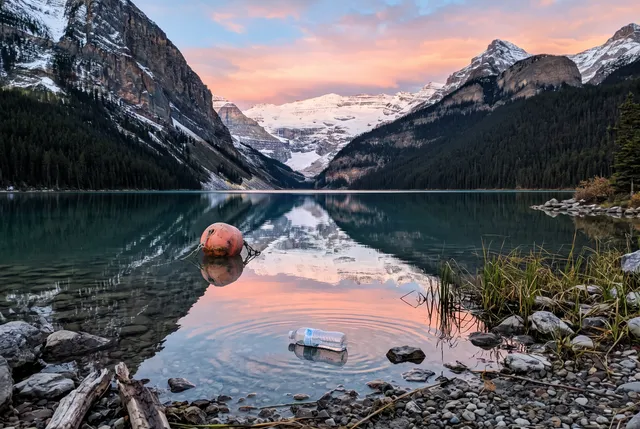
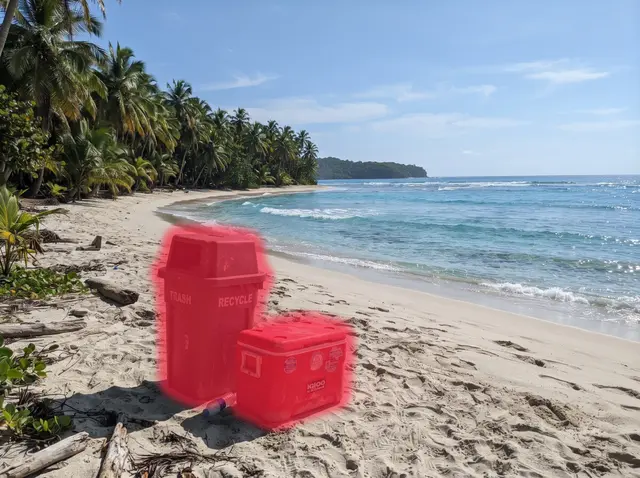
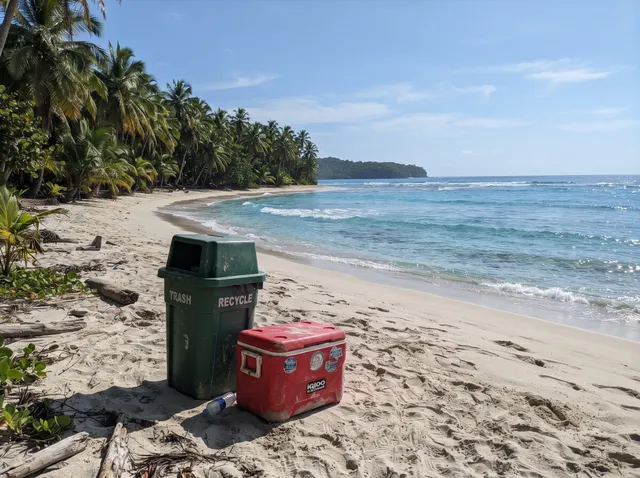
Removed: plastic bottle and buoy
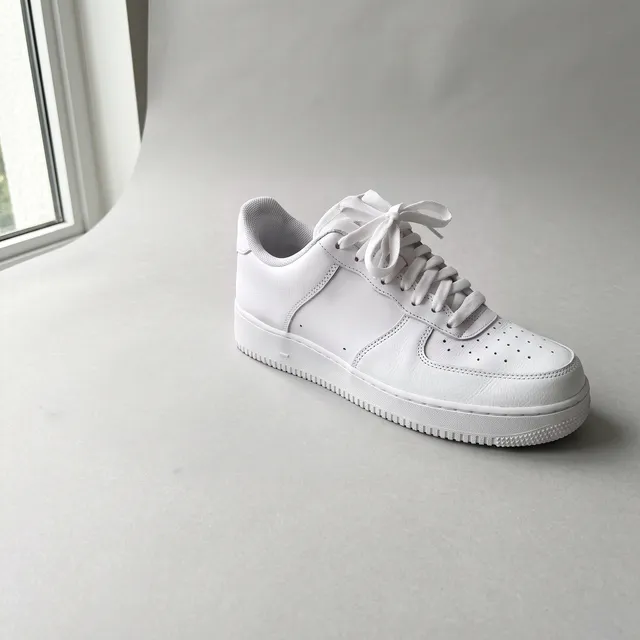
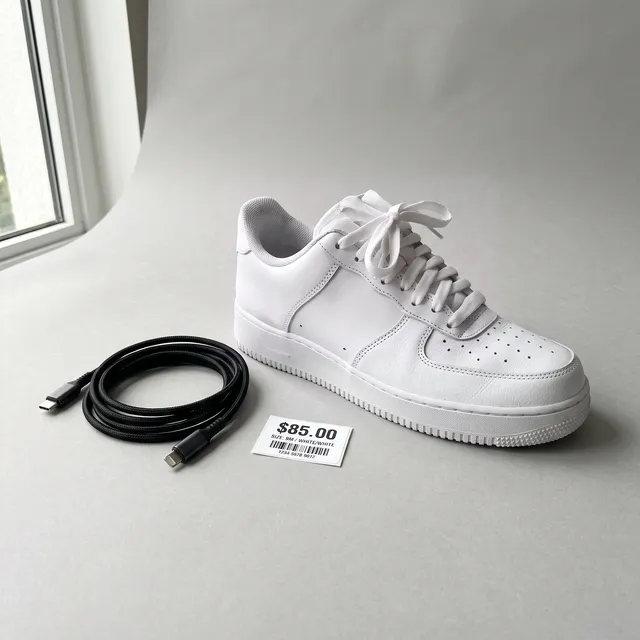
Removed: cable and sticker


Removed: cotton pad and hair tie


Removed: pedestrians
25 photos · 25 clean results · Nano Banana 2 + blend into the original · 2 credits each
Remove object from photo FAQ
Something else? Email support@theaiphotoeditor.com


Clean up your photo in a minute
Sign up for 10 free credits, enough for 5 removals. Credits back if it fails.
or drop a file anywhere on this page
Updated Oct 2026 · Tested on 25 photos in 8 categories