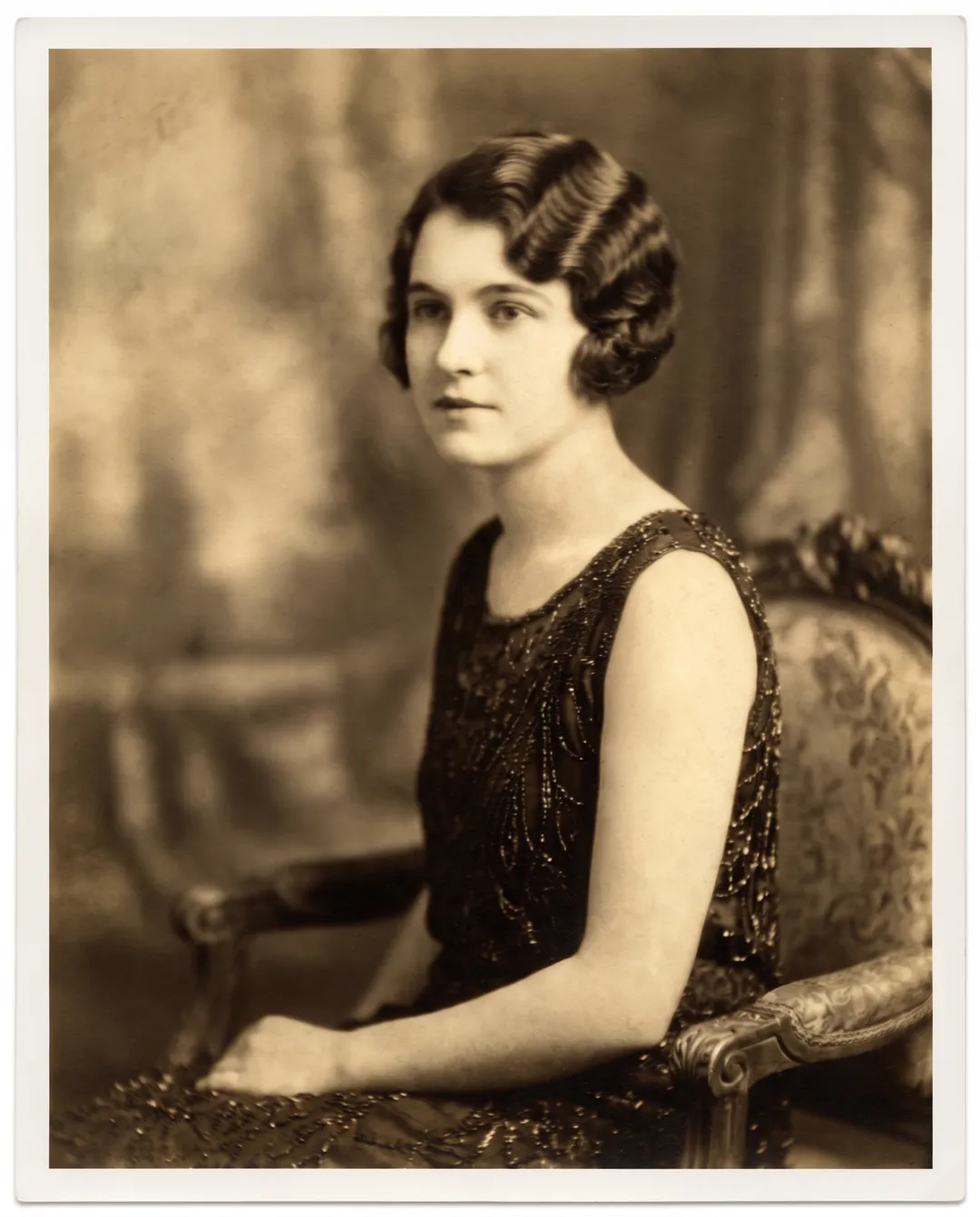
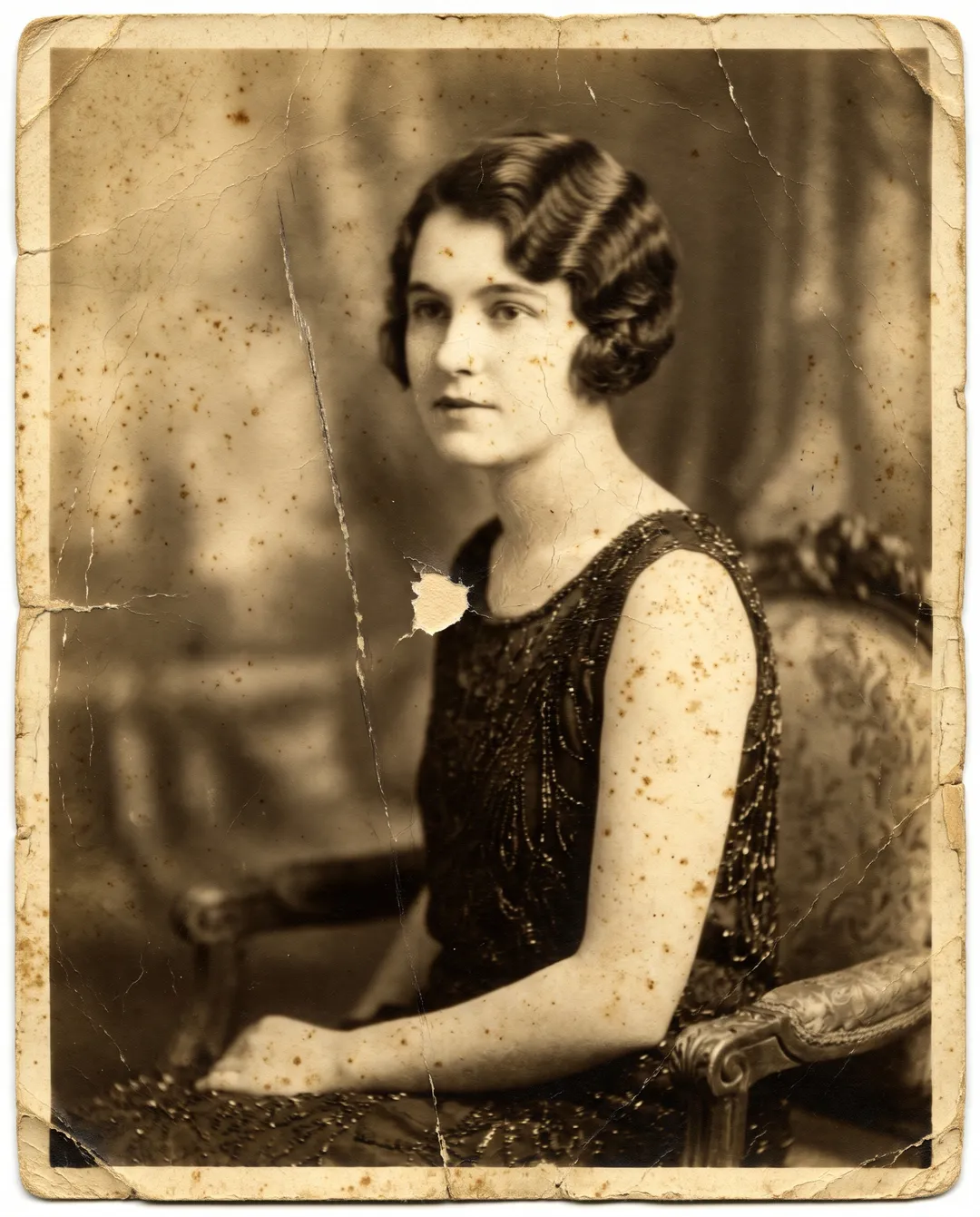
Remove scratches in four steps
Works in a browser on a phone or a computer. Nothing to install.
Scan the print without adding marks
Wipe the scanner glass and blow loose dust off the print first: dust on the glass shows up as new white specks. Scan at 600 dpi, or photograph the print flat in daylight with no glare.
Count the marks
A handful of spots on a background: try a healing brush first (see below). Scratches across faces, a web of cracks or a crease: use AI restoration.
Upload and restore
Open Photo Restoration, upload the scan as JPG, PNG, WEBP or HEIC up to 20 MB, keep the tone as Original and press Restore photo. One run removes scratches, dust, cracks and creases together; you do not mark them. It needs a free account.
Zoom in where the scratches were
Drag the handle to compare with your scan. Look closely at eyes, mouths, badges and lettering that a scratch crossed. If something looks invented, run it again. Download the full-size PNG; there is no watermark.
Healing brush or AI restoration
Pick by how many marks there are and where they sit.
| Healing brush (Snapseed or an editor) | AI restoration | |
|---|---|---|
| Best for | A few dust spots or one scratch on a plain area | Many scratches, cracks or creases, or marks across faces |
| How it works | You dab each mark and it copies texture from around it | One upload; every mark is found and removed |
| Time | Seconds a spot, hours for a cracked print | About a minute |
| Marks across a face | Hard to hide without smearing the skin | Rebuilt from the face around them; check the result |
| Cost | No credits | 2 credits a photo; 10 free credits at sign-up |
| Control | Full; you choose every spot | None per spot; run it again if something looks wrong |
The AI column is from our 24 test restorations, October 2026. The healing brush column describes how these tools work, not a measurement.
Free option for a few spots
Snapseed has a Healing tool for small marks. Open the scan, pick Healing and tap or brush over each speck or short scratch, zooming in for thin lines. As of October 2026 it still works best on small marks and struggles with large areas and busy backgrounds, so a long crack through a patterned dress is hard to hide this way. Snapseed is a free app.
A desktop editor with a spot healing or clone brush gives you more control. Work along a scratch in short strokes, one section at a time, and take texture from the same side of the line. On a print covered in cracks, expect hours.
Save a copy before you start, and stop when the marks you notice are gone. A few spots left on a background are easier to live with than a smeared face.
Scratches, dust, cracks and creases, removed
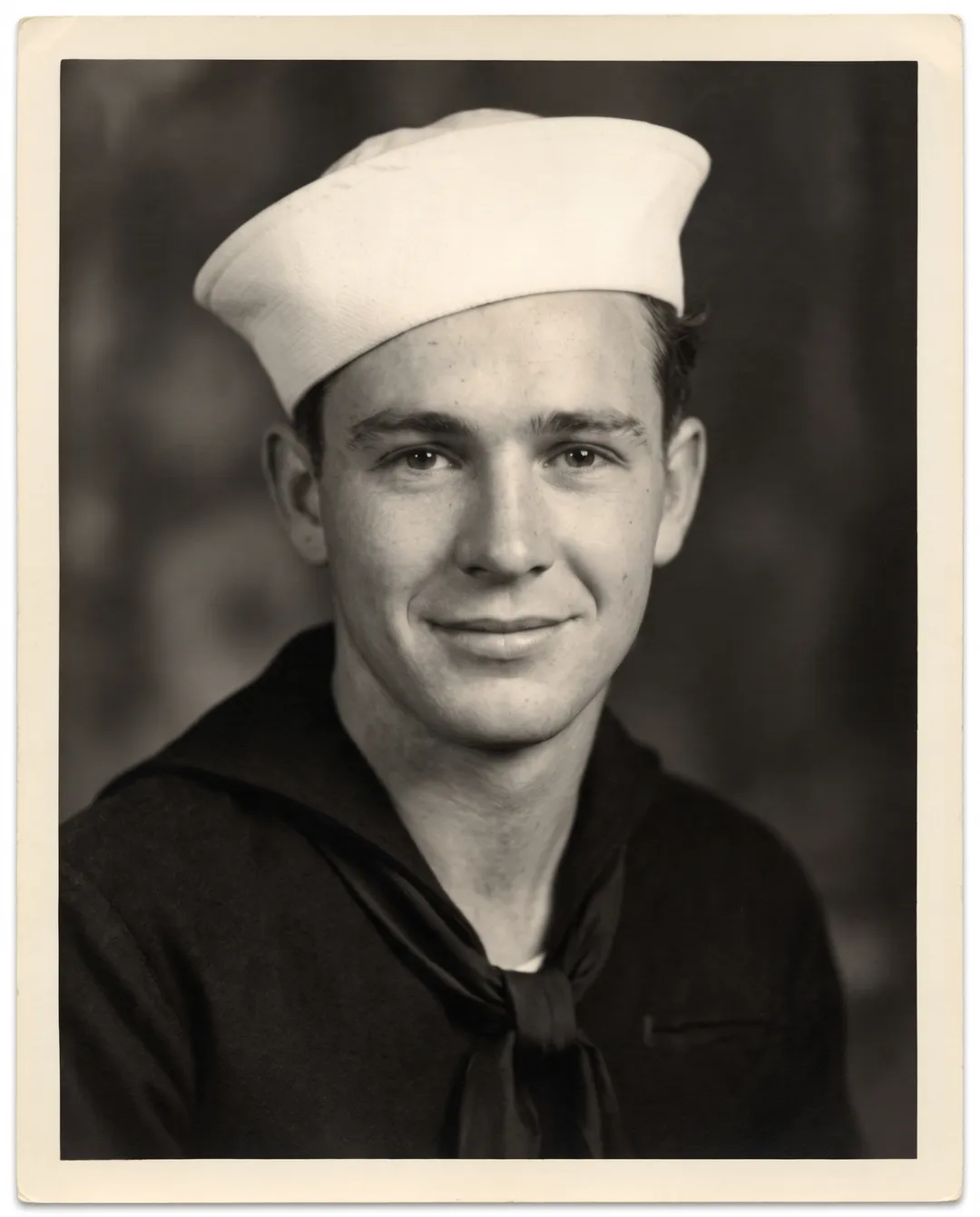
Real damaged prints and the unedited result of one restore each, tone kept. Drag the handle to compare.
 BeforeAfter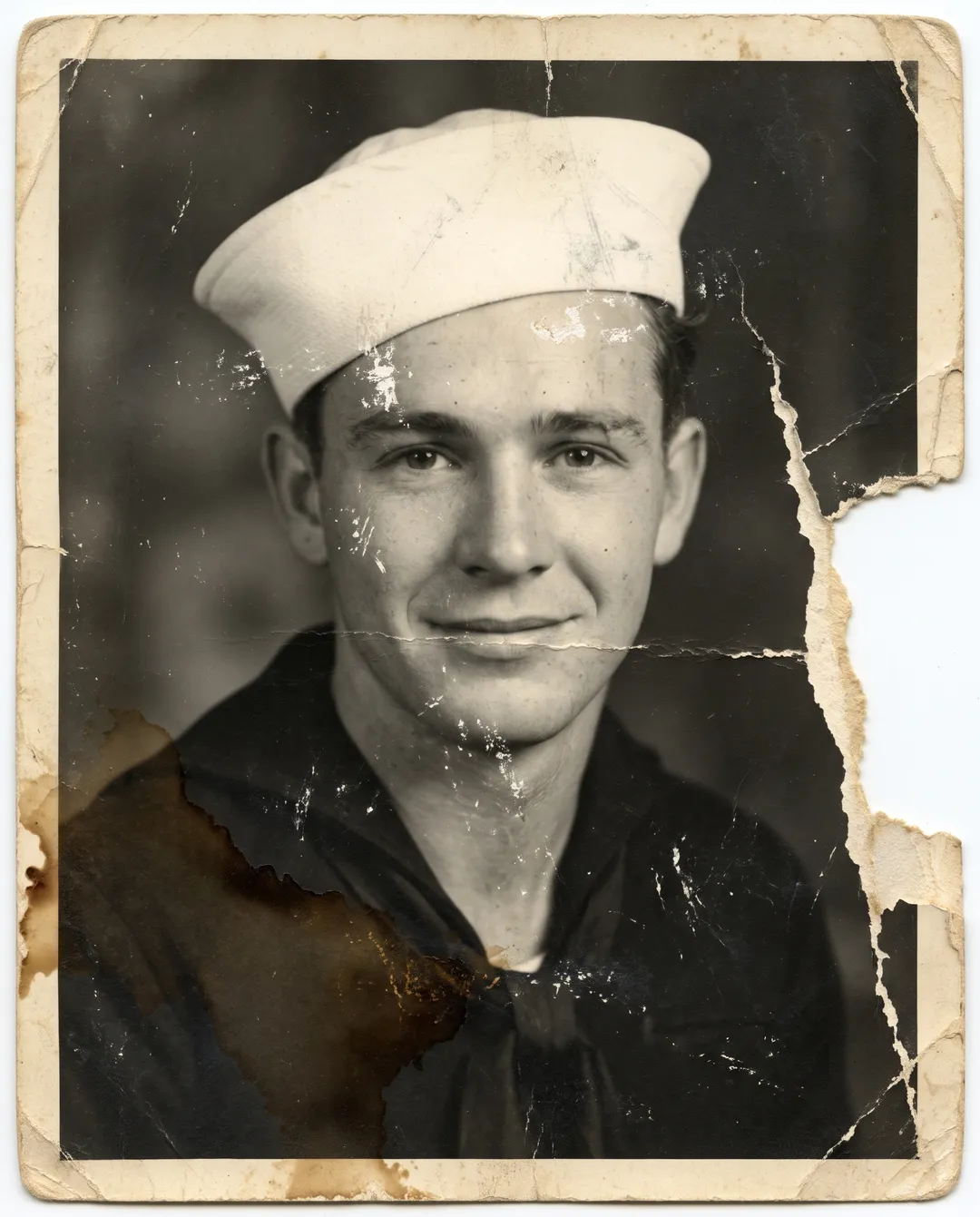
Flaking specks across the face and cap, a crack along the chin and a coffee stain, removed. The torn right edge is rebuilt. 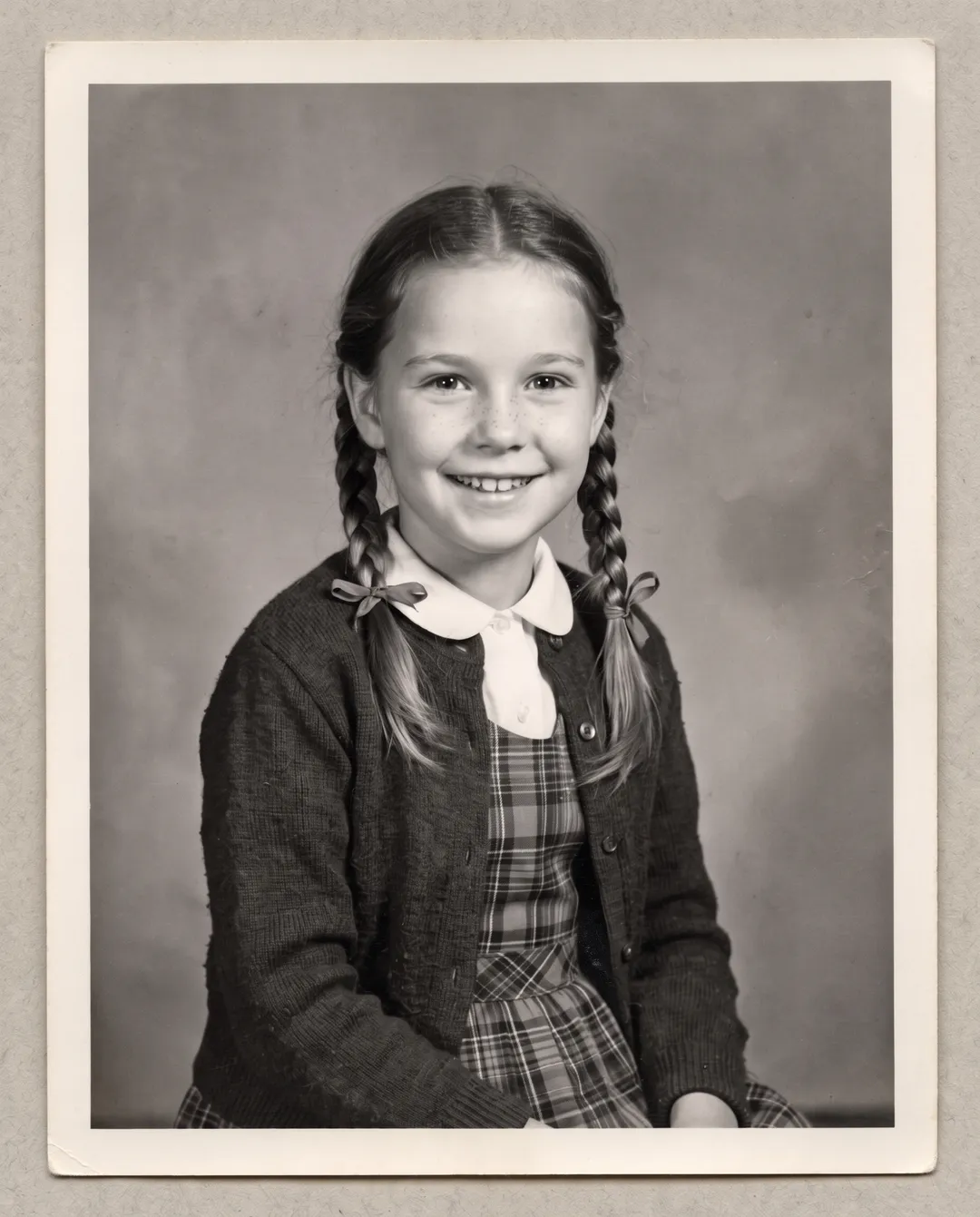 BeforeAfter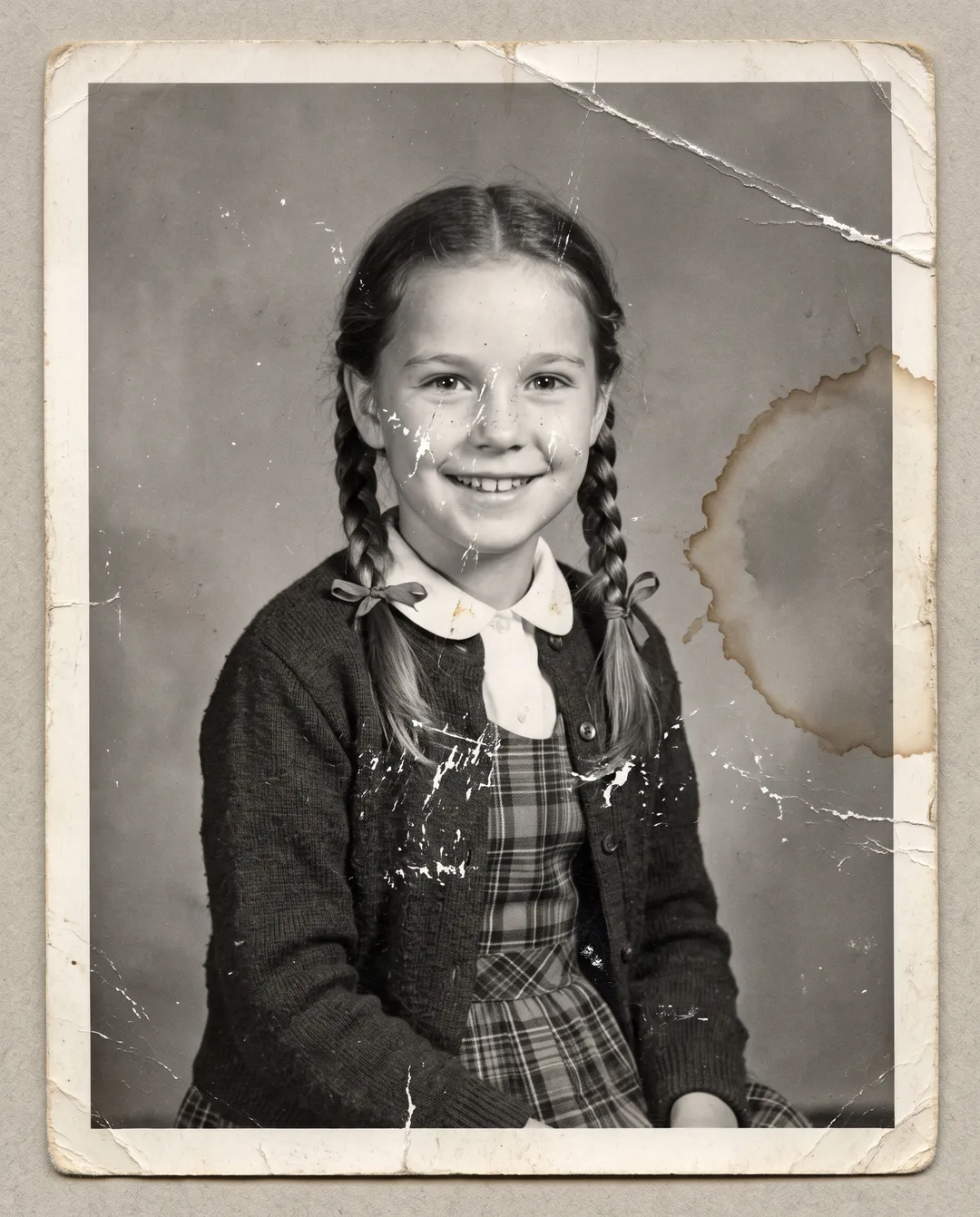
White scratches across the cardigan and the cheek, a water stain ring and a cracked corner, all gone. 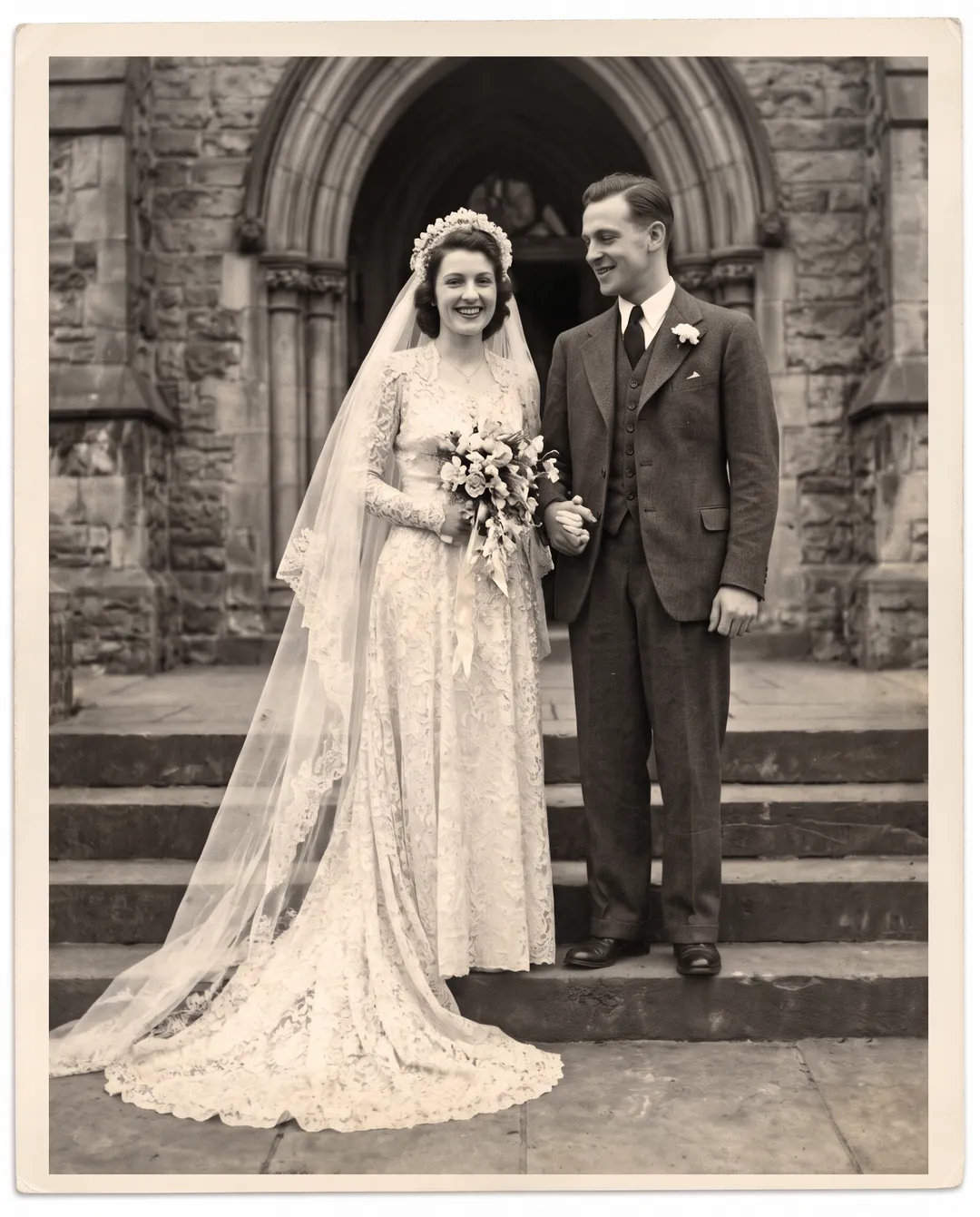 BeforeAfter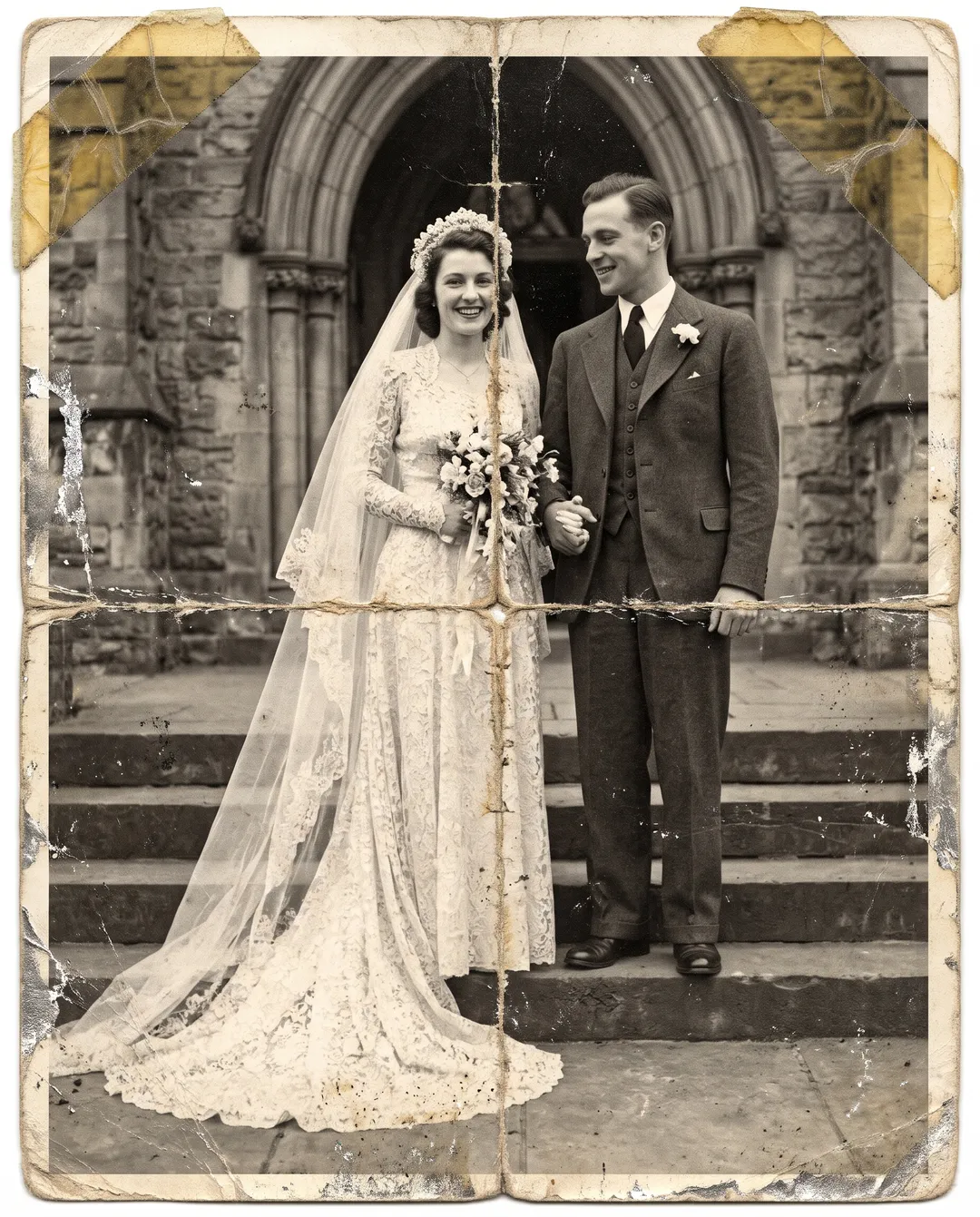
Two folds in a cross, tape on the corners and silvered edges. The fold lines through the bouquet and the dress are gone. 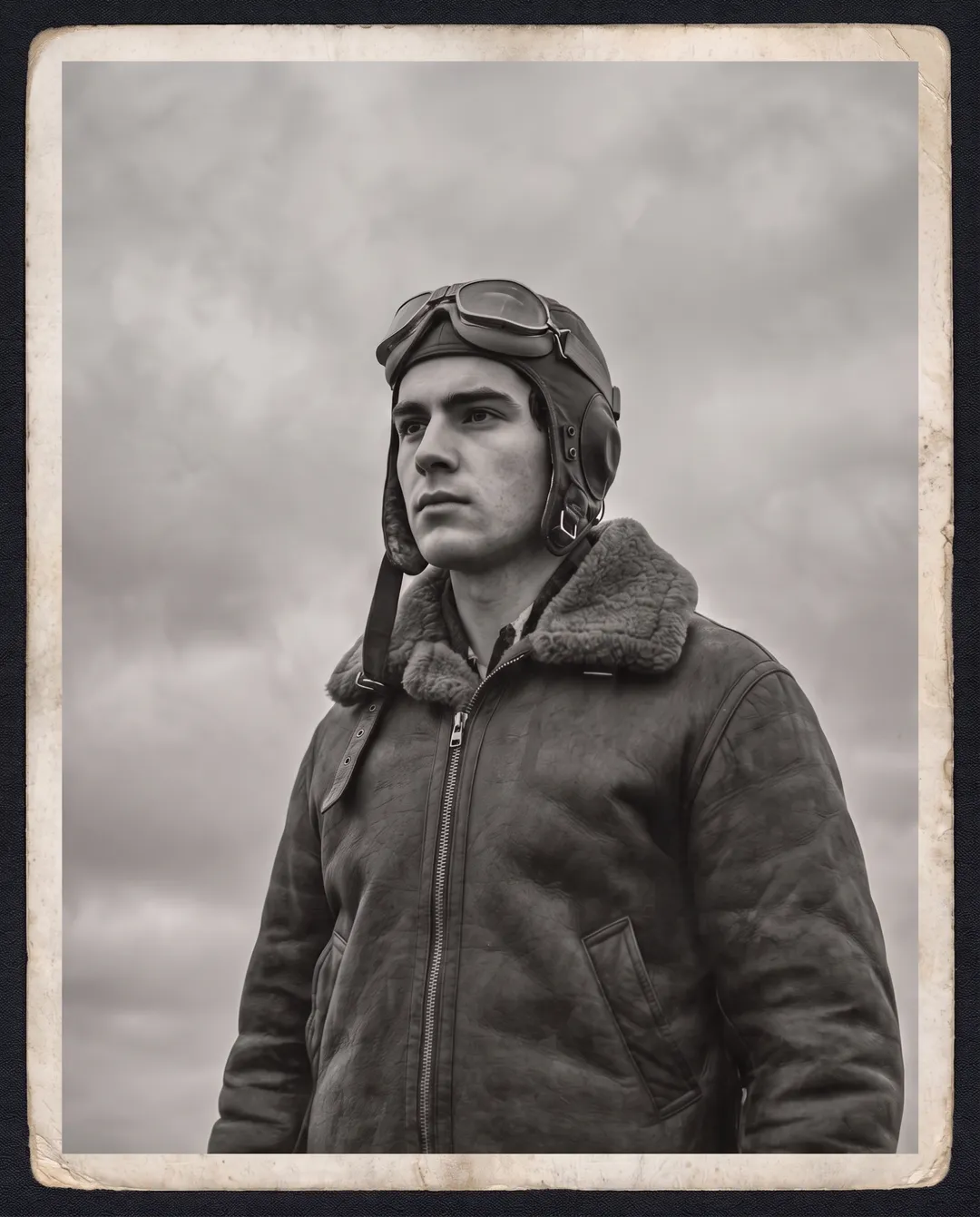 BeforeAfter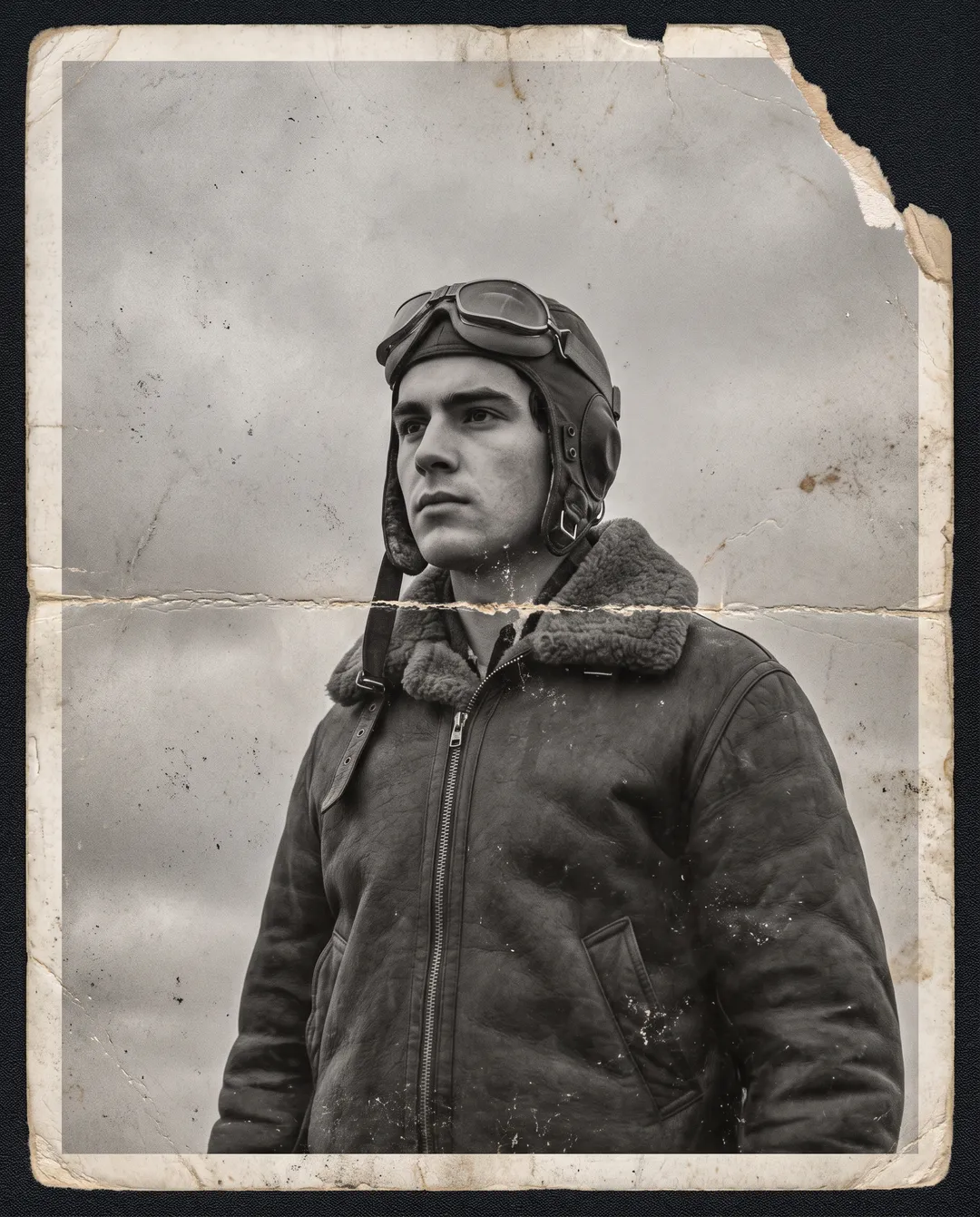
A fold across the chest, a torn corner and dust in the sky, cleaned. The fleece collar keeps its texture.
Four habits that keep new marks out of the scan
Clean the glass, not the print
Wipe the scanner glass with a dry microfiber cloth. Blow dust off the print rather than rubbing it, which can add fine scratches.
Do not force a crease flat
Scan a curled or creased print under the lid's own weight. Pressing it hard can crack the surface further.
Kill the glare
Shoot near a window, not under a ceiling light, and tilt glossy prints until the bright patch is gone. Glare looks like damage and gets painted over.
Keep the original scan
Save it next to the fixed copy. The fixed photo contains detail drawn by AI where the scratches were.
What scratch removal cannot do
- What was under a scratch is rebuilt, not uncovered. Where a scratch crossed an eye or a letter, you see the model's best fill. Compare it with the scan.
- Small details can be invented. In one of our runs the model added a ribbon bar to a uniform that had none. A second run was correct.
- There is no scratches-only setting. The same run also corrects fading and color. Keep the tone as Original to stay closest to the print.
- Large lost areas are new pixels. Where a crack has flaked off a big piece of the picture, it is rebuilt from what is around it, as with a tear. For tears and missing corners, see How to restore an old photo.
- Output is about 2K (2300 to 2600 px on the long edge). For a large print, run the result through the Image Upscaler.
Questions about fixing scratches
Yes. For a few spots, Snapseed's Healing tool or a desktop editor's healing brush costs nothing. For a whole print, a free account here gets 10 credits with no card, enough for 5 restorations.
Not for restoration. It needs a free account, which starts with 10 credits. Credits go back to your balance if a run fails.
It also corrects fading in the same run. In our 24 tests the framing and the position of every person stayed the same, and faces stayed the same people. The edge of the print can change: one worn border came back as a clean black frame.
Yes. Photograph the print flat in daylight, then use Snapseed for a few spots, or upload the photo to Photo Restoration in your phone's browser.
Yes. Set the tone to Colorize before you restore. See How to colorize black-and-white photos for what to expect from the colors.
Uploads are never used to train models. On free accounts, photos and results are deleted after 30 days, and you can delete any of them yourself.
Last checked Oct 24, 2026 First published. Results from our 24 test restorations; Snapseed's Healing limits checked October 2026.